Editing with Compose
There are two tools to edit content in Contentful:
- Web App
- Compose
Compose is a web-based application which presents a page-based approach to content - meaning everything starts with the page you wish to edit.
- It's recommended to use the Compose app for raspberrypi.org for managing content
- For more advanced users, the Contentful editor for raspberrypi.org may be used
Opening Compose
Visit the Compose app for the raspberrypi.org space at:
https://compose.contentful.com/spaces/oshmmv7kdjgm/
Compose will show you a searchable list of the available pages to edit, as well as the facility to create a new page:
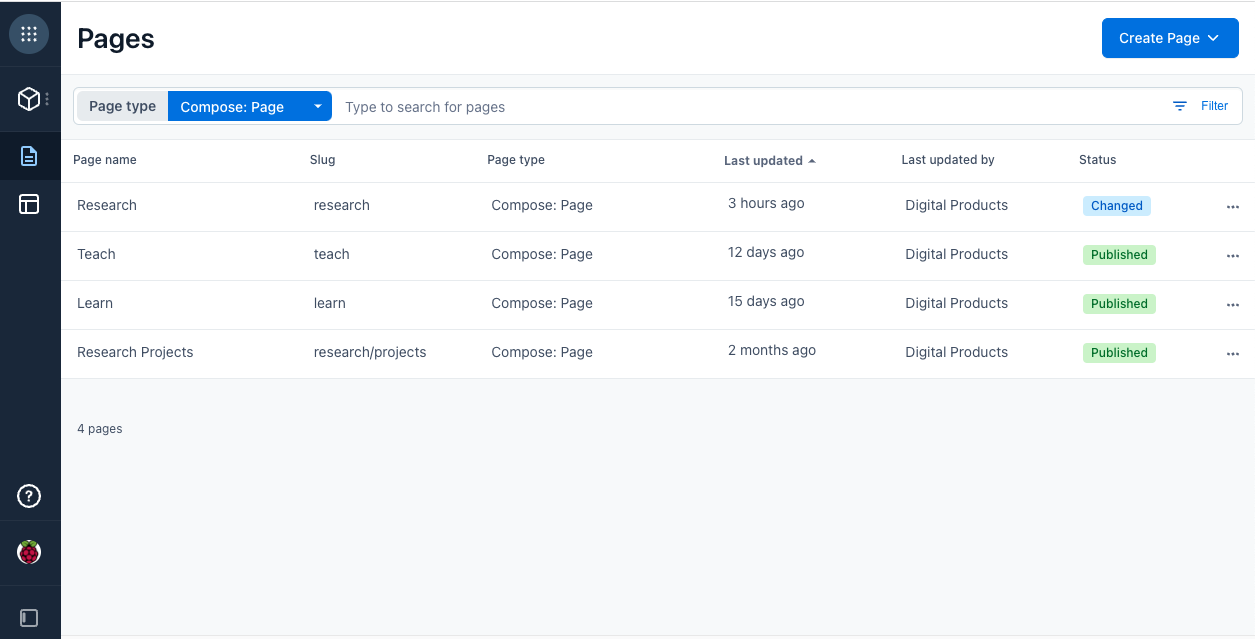
Page statuses
All content entries, including pages, have a status which can be one of four states.
Editing a page
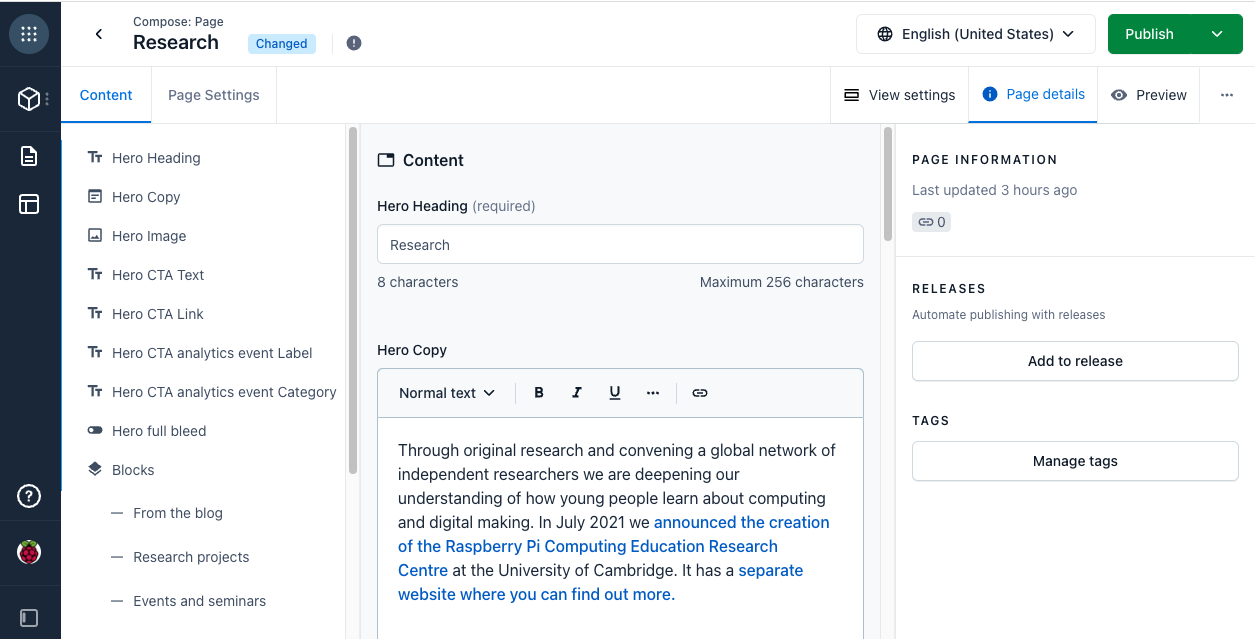
Opening a page will show you:
- The list of components in use on the left sidebar
- The content in each of the components in the middle
- Page information on the right sidebar
The menu bar has two tabs:
- Content
- Page Settings
Content tab
This is where you will edit the content that the user sees:
Page Settings tab
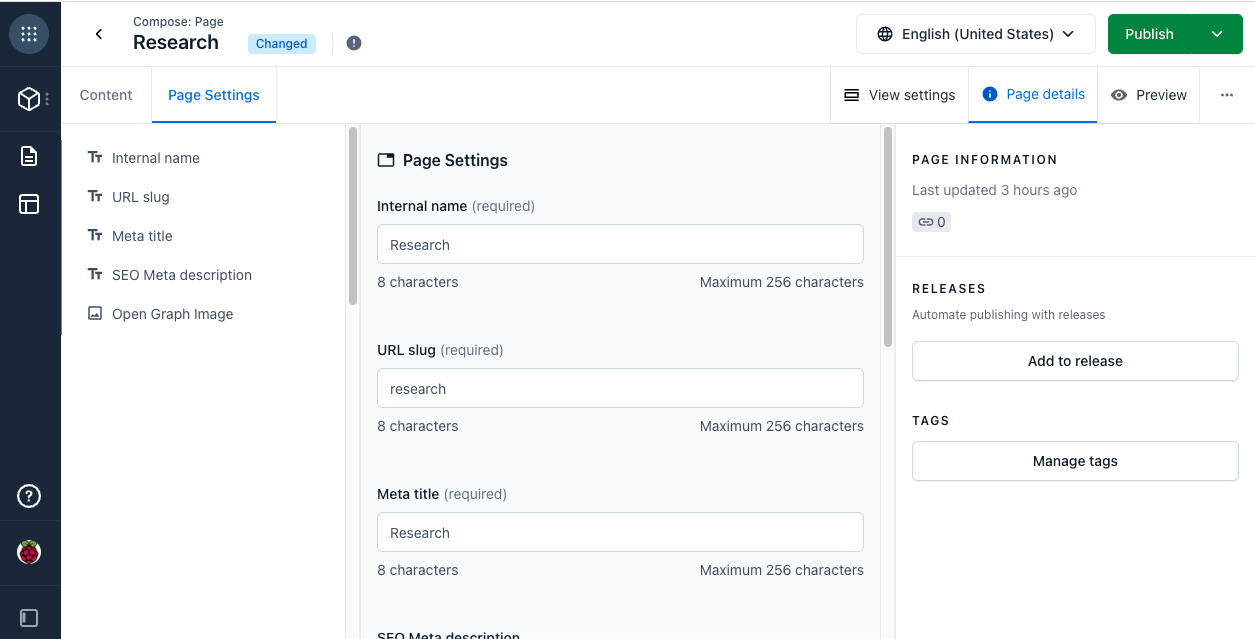
This is where important information about the page lives, such as:
- Internal name
- Slug - this is the URL path you want the page to appear under
- SEO metadata - used by search engines so this is extremely important
Editing Content
As you edit content, the pages auto-save but won't be visible to the public until you publish the page. Any changes made to a page will convert the page's status to "changed" until it's published.
Remember, only when a page is published will content become visible to users.
Editing a component
You can expand components to view their content and settings by clicking the down arrow on a component:
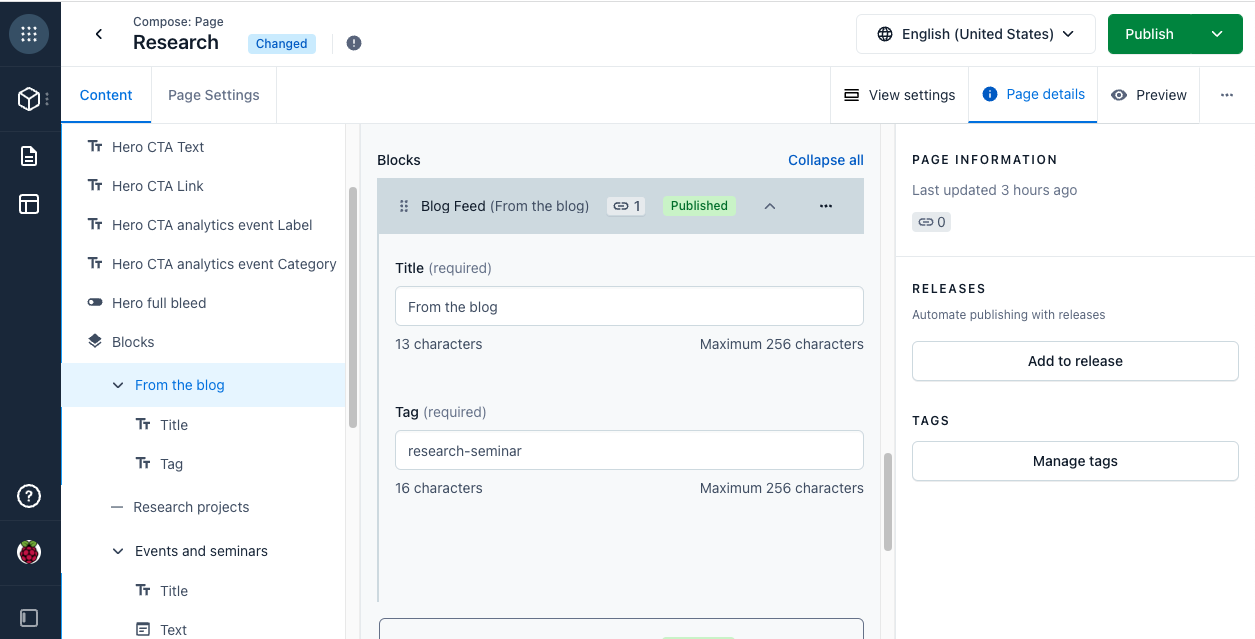
This will also show you the page status and where it's used elsewhere in the website (the chain link icon), so you know if changing something here will affect other pages.
Previewing
Previews can be accessed by pressing the "Preview" button in the top right of the page. This will open up raspberrypi.org on the page you're editing, where you can see what the page will look like before it is published.
If you aren't logged in to raspberrypi.org using your work Raspberry Pi account (which must end in "@raspberrypi.org"), you'll be redirected to log in before you are able to preview the page.
You won't see a visual indication that you're logged in - we are working on a navigation bar to assist with this, however you can identify a preview page by the URL as the URL will end with ?preview=t e.g. https://www.raspberrypi.org/teach?preview=t.
Publishing
Pressing the green "Publish" button in the top right will then publish your page and make it visible to the world.
There are some options:
- You may schedule a publish, for example if something is going live out of office hours
- You may unpublish a page - this will cause the page to no longer be visible until it is published again